After successfully creating your Launchpad account, you’ll need to verify your email address before you can start creating digital business cards. This guide walks you through the verification process and what happens next.
After completing the registration form, you’ll receive a verification email in your inbox:
Check your email (including spam/junk folders)Look for an email from Launchpad with the subject line about email verificationClick the verification link in the emailYou’ll be redirected back to the Launchpad landing page
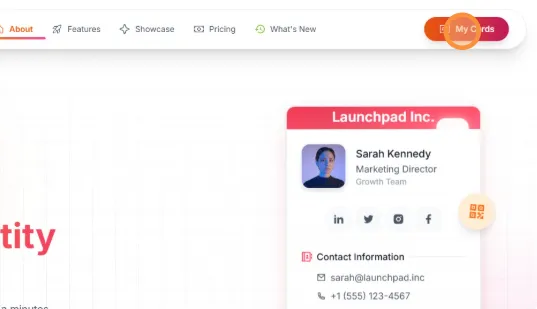
Once you click the verification link, you’ll notice an important change on the landing page:
Before Verification:
The navigation shows a “Register Now” button
You cannot access the dashboard
Account is in pending verification status
After Verification:
The “Register Now” button changes to “My Cards”
This indicates your account is now verified and active
You can now access your dashboard and start creating cards
Account Verified
Verification Complete
Email address confirmed
Account status is now active
Full access to Launchpad features
Ready to create your first digital card
Verified Navigation Updated
Interface Changes
“Register Now” becomes “My Cards”
Dashboard access is now available
User session is established
Personal account area is unlocked
Access Granted After a successful verification, proceed to accessing your dashboard via the “My Cards” button in the landing page’s navigation bar.
Now that you’re verified and have access to your dashboard, you can:
Create Your First Card
Start Building
Click “Create New Card” on your dashboard
Add your personal and professional information
Customize the design and layout
Preview and publish your digital business card
Explore Features
Discover Launchpad
Browse available card templates
Upload your profile picture
Add contact information and social links
Learn about Pro features and benefits
Share Your Card
Start Networking
Generate QR codes for easy sharing
Copy your card link for digital distribution
Export email signatures
Begin building your professional network
As a new user, you’ll start with free access to basic features. You can
explore Pro features and upgrade anytime to unlock additional templates, logo
uploads, and premium customization options.
Didn’t receive the verification email?
Check your spam/junk folder
Wait a few minutes - emails can be delayed
Ensure you entered the correct email address
Contact support if you still don’t receive it
Verification link not working?
Make sure you’re clicking the most recent verification email
Try copying and pasting the link into your browser
Clear your browser cache and try again
Contact support if the link appears broken
“My Cards” button not appearing?
Refresh the landing page after clicking the verification link
Clear your browser cache and cookies
Try logging out and logging back in
Ensure you completed the full verification process